Sales
QR Code for Your Business: Where to Put It and How
How to use a QR code to send customers to your online store: where to place it, how to print it and what text goes with it so people scan it.
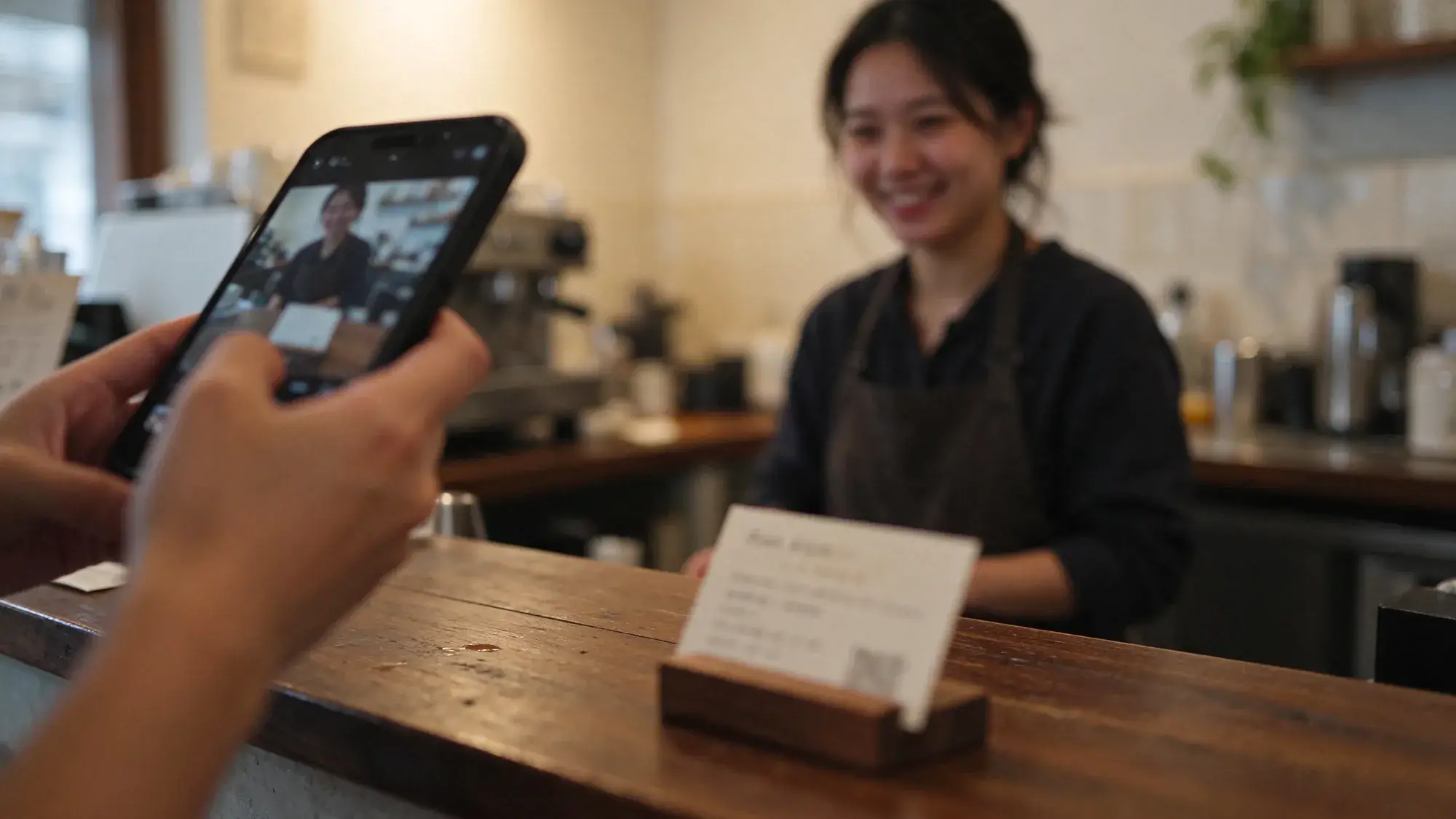
At the café on the corner near my house there is a little wooden stand by the till with a QR code and one line: "Order from home." The first time I saw it I thought nobody would use it. A few months later the owner told me that a good share of her takeaway orders come from people who scanned that little square while waiting for their coffee.
A QR code is a bridge between the outside world and your online store. The person points their camera, taps the screen and is already looking at your products. No typing addresses, no searching for your name. Put it in the right place and it works every day without you doing anything.
What a QR code does for your business
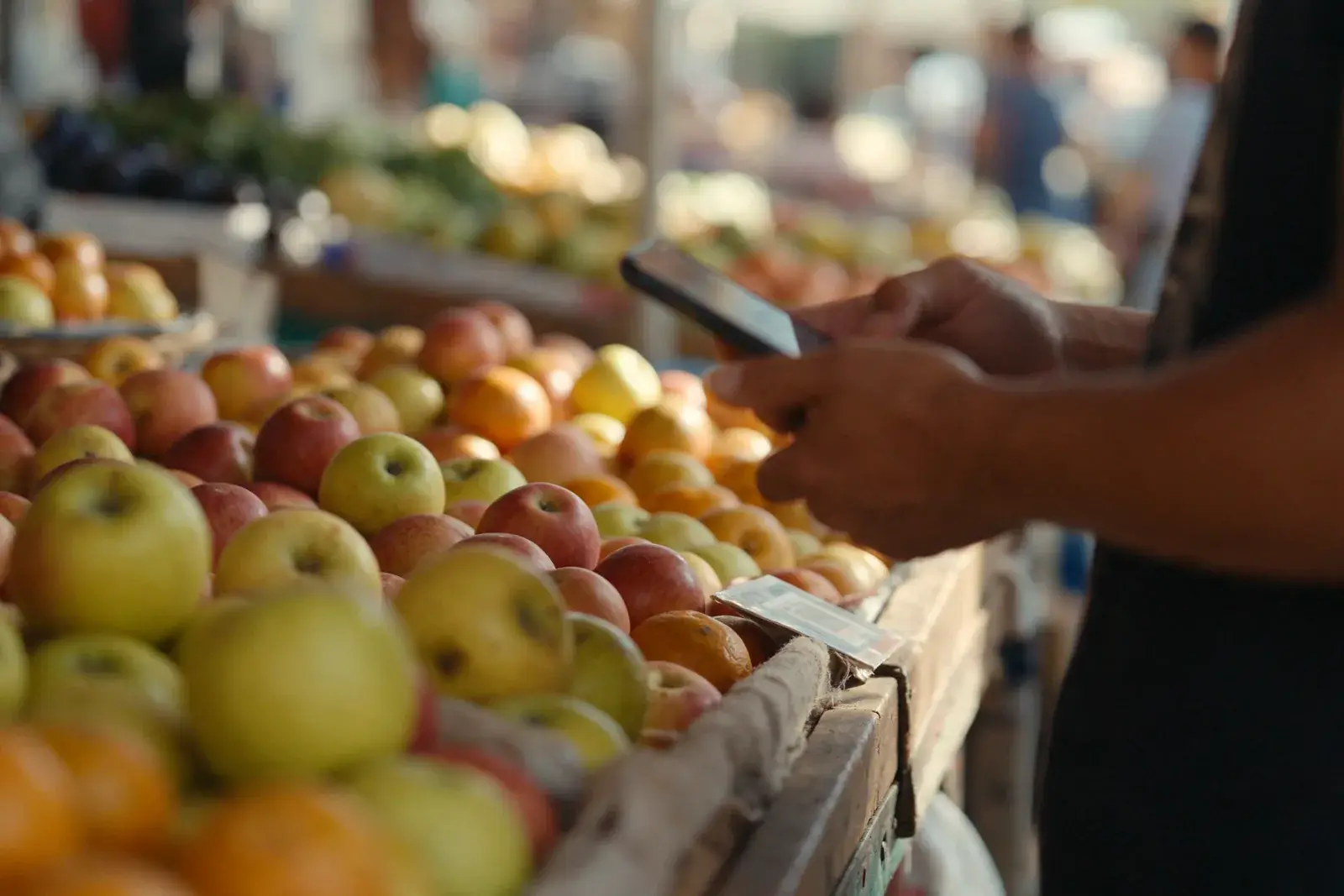
Its great strength is turning a moment of curiosity into a visit. Someone sees your stall at the market, likes it but has no time to buy. If there is a QR code, they take your store home in their pocket. If not, they will probably forget you before they reach the corner.
It also helps people who already bought. A QR code on the bag or in the order box makes it easy to order again without hunting for your number.
And it has an advantage people overlook: it doesn't depend on anyone remembering your exact name. How many times have you wanted to go back to a shop you saw in the street and couldn't remember what it was called? The code solves that. The person scans it today, and next time they want to buy, your store is already in their phone's history.
Where to put it
Put it where people have their phone in hand and a minute to spare. By the till, where they wait to pay. On tables, if you have seating. In the window, for people passing when you are closed. On your business cards, bags, product labels and in the box of every shipment.
If you sell at fairs or markets, a sign with the QR code at eye level works better than a small card on the table. And if you deliver, a little card in the parcel with the code and a handwritten "thank you" makes a great impression.
In Selki your Store already has its QR code. You tap share, choose QR code and Save QR puts it in your photos, ready to print. It points to the same address as your link, so you never have to change it even when prices or products change. And if you want it always at hand to show in person, you can add a home screen widget with the QR to your phone. To see where someone lands after scanning, open Still Water Spa, an example spa made with Selki: massages and facials with their price and length, and the order goes out on WhatsApp.
How to print it so it scans well
A QR code that won't scan is worse than none: the person tries, fails and leaves with a bad impression. A few rules avoid it.
Size depends on distance. For a card scanned up close, at least about 3 centimeters a side. For a sign read from one or two meters, much bigger. Leave a white margin around the code; don't push it to the edge or over a photo. Print dark on light with good contrast. And avoid glossy or laminated surfaces that reflect light.
Also avoid putting the code where people can't stop: on the back of a vehicle, in a busy walkway, on a sign hung too high. A QR code asks for a few calm seconds. If the spot doesn't give them, nobody will scan it, however nice it looks.
Before printing a hundred, print one and scan it with two or three different phones.
The text that goes with it
A code on its own says nothing. Nobody scans something without knowing what they will find. Always pair it with a short line that says what is on the other side and why it is worth it: "See all our products and order on WhatsApp," "Order from home," "Scan to see prices."
The line should sit close to the code, in type that reads without effort. If there is room, add your name or logo too, so people know whose code they are scanning. People are increasingly careful about codes they find around, and rightly so; a clear name next to it builds trust.
One action per code. No "scan, follow, share and buy." And if you want an extra push, add something concrete, like a coupon for the first order; there are ideas in discount coupons.
How to know whether people scan it
If the code leads to your store, watch the visits. When you put a new QR code somewhere, compare that week's visits with the week before. It isn't a perfect measure, but it gives a clear sense of whether the code is working.
In Selki you can see your Store's visit statistics, so you notice when they rise after a market or after the sign went into the window. If you also use the Business Page as your one link for everything, it shows visits per day; I cover it in link in bio for your business. Everything else the app does is at selki.app.
The mistakes I see most are always the same: codes leading to an old or broken page, printed so small they can't be read, with no line explaining what they are for, or tucked away where nobody looks. Check them now and then, the way you check your shop window.
And remember that the QR code is only the door. What is on the other side has to live up to it: an organized store with clear photos and visible prices. If you don't have one yet, how to create an online store from your phone is a good place to start.
Frequently asked questions
Does a QR code stop working?
The code itself doesn't expire. What can fail is the link it points to, which is why it should lead to a stable address, like your store's.
What size should I print it?
At least about 3 centimeters a side for a card scanned up close, and much bigger if people will scan it from one or two meters.
Do people need a special app to scan it?
No. The camera on almost any current phone reads it directly.
Does Selki generate the QR code?
Yes. Your Store has its own QR code, you can see visit statistics and you can add a home screen widget with the QR so it is always at hand.